Quick Start Guide
Get your first login, your first connected integration, and your first Posture Score in about 15 minutes.
Introduction
CMDash is a daily operations dashboard for security leaders — it aggregates signals from your security stack, calculates a live Posture Score, and maps your controls to the compliance frameworks that matter to your organization. Whether you are preparing for a board presentation, tracking a CMMC assessment, or just want a single source of truth for your security program, CMDash brings it all into one place.
This guide walks you through your first login to your first meaningful insight. Most people complete it in under 15 minutes.
Before You Begin
Browser requirements CMDash runs in any modern browser. We recommend and fully support:
- Google Chrome (version 110 or later)
- Mozilla Firefox (version 110 or later)
- Microsoft Edge (version 110 or later)
Safari is supported but not recommended for board report generation.
What you'll need Your workspace Owner will send you an invitation email with a link to activate your account. Have that email on hand before you start. If you do not have it, ask your Owner to re-send the invitation from the Settings > Team page, or contact support@cmdash.com.
Step 1 — Log In
- Open your browser and navigate to https://app.cmdash.net.
- On the login screen you will see three options:
- Email and password — enter the email address tied to your invitation and the password you set during account activation.
- Magic link — enter your email address and click Send magic link. CMDash will email you a one-time sign-in link that is valid for 15 minutes. No password required.
- Single Sign-On (SSO) — available on Starter plans and above (SCIM and LDAP directory sync remain Enterprise-only — see SSO, SCIM & LDAP). Click Continue with SSO, enter your company domain, and you will be redirected to your identity provider (Okta, Azure AD, Google Workspace, or any SAML 2.0-compatible IdP).
- After authenticating, you land on the main dashboard.
First-time activation: If this is your very first login, you may be prompted to set a password and accept the terms of service before reaching the dashboard. Complete those steps and you will be taken directly to the onboarding wizard described in Step 2.
Step 2 — Complete Onboarding
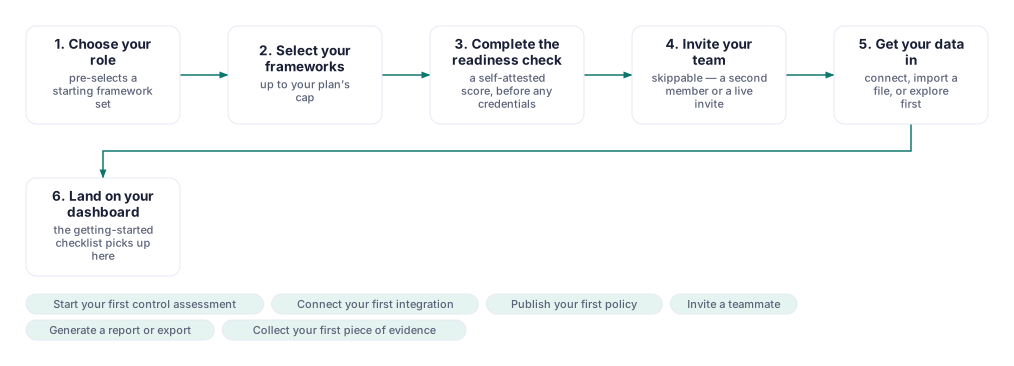
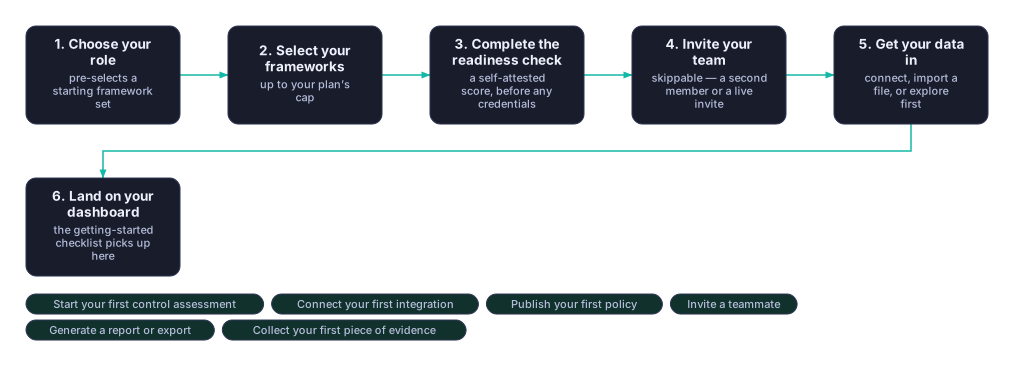
The first time you log in as an Owner, CMDash launches a short setup wizard. It has six steps and takes a few minutes.
The wizard configures the organization, not your personal account — so if a colleague started it before you, opening it again resumes their half-finished setup with their answers already filled in, rather than asking you everything a second time. You can leave and come back at any point; the wizard works out where you are from what has actually been set up, not from a saved position.
Wizard step 1 of 6 — You
Pick the description closest to your job:
| Your answer | What it changes |
|---|---|
| Security leader / CISO | Starts you on NIST CSF 2.0, ISO 27001, SOC 2 and CIS Controls, and puts CrowdStrike, Splunk, Okta and AWS Security Hub at the top of the connector list |
| GRC lead / compliance manager | Starts you on SOC 2, ISO 27001, HIPAA and PCI DSS, ranks Okta, AWS Security Hub, GitHub Advanced Security and Jira first, and offers the spreadsheet import by default |
| MSP / vCISO | Starts you on NIST CSF 2.0, SOC 2, CMMC Level 2 and ISO 27001, and finishes at your first client workspace |
| Defense contractor / CMMC OSC | Starts you on CMMC Levels 1–3 and FedRAMP, and ranks AWS, Azure, Okta and CrowdStrike first |
| Just exploring | Starts you on NIST CSF 2.0 and SOC 2, and offers sample data so every screen has something in it |
Nothing here is locked in — every later step can be changed, and the frameworks arrive ticked rather than fixed. If your plan includes fewer frameworks than the list above (the Starter plan includes one), the wizard pre-ticks only as many as your plan allows, so you never meet an error on a selection you did not make.
Stack presets. Once you pick a description, the same step asks What do you run? and offers the stack presets that fit it. This is optional. A preset pre-ticks its frameworks (still capped to what your plan allows) and puts its connectors first in the integrations step. Choosing the same preset again clears it.
| Preset | Offered to | Frameworks | Connectors ranked first |
|---|---|---|---|
| DoD subcontractor: Microsoft 365 GCC High and CrowdStrike | Defense contractor, Security leader | CMMC Level 2, CMMC Level 1 | Entra ID, Microsoft Defender, CrowdStrike, Microsoft Purview, Intune, Azure |
| DoD subcontractor: Google Workspace and SentinelOne | Defense contractor, Security leader | CMMC Level 2, CMMC Level 1 | Google Workspace, SentinelOne, GCP, Okta, Jamf, Tenable |
| SaaS startup: Google Workspace, AWS and GitHub | Security leader, GRC lead, Just exploring | SOC 2, ISO 27001 | Google Workspace, AWS, GitHub, AWS Security Hub, Jira, Okta |
| Healthcare clinic: Microsoft 365 and Intune | Security leader, GRC lead | HIPAA, NIST CSF 2.0 | Entra ID, Intune, Microsoft Defender, Microsoft Purview, Azure, Jira |
| MSP running several client organizations | MSP / vCISO | NIST CSF 2.0, SOC 2, CMMC Level 2 | CrowdStrike, Entra ID, Microsoft Defender, Okta, AWS, Jira |
The SOC 2 and HIPAA presets also offer a checkbox to add a SOC 2 or HIPAA focus group to your sidebar; it is off until you tick it.
Wizard step 2 of 6 — Organization
Your organization's name, industry (e.g., Financial Services, Healthcare, Defense Industrial Base, Technology, Retail) and annual revenue band. CMDash uses the industry and revenue band to pick your benchmarking peer group, so the comparison on later screens is against organizations like yours.
Wizard step 3 of 6 — Frameworks
Every framework CMDash publishes, grouped by family, with your role's picks already ticked and a note saying which role ticked them. Untick anything that does not apply, add anything that does, and use the filter box to find one by name. Frameworks can be added at any time afterwards from the Compliance page.
Wizard step 4 of 6 — Readiness
A short questionnaire — the questions are shaped by the industry and revenue band you gave in the previous wizard step — which produces a real posture score and an industry peer comparison before you have connected anything. This is the point at which the product starts telling you something rather than asking you things.
Wizard step 5 of 6 — Team
Invite teammates, if your plan includes multiple seats. Enter each person's email address and assign a role:
- Admin — full dashboard access and user management
- Viewer — read-only access to dashboards and reports; can download exports but not generate them, comment, or use the AI assistant
The wizard shows how many seats your plan has left, and refuses to send more invitations than it can accept, so an invite never fails after the fact. This step is skippable — you can invite teammates later from Settings > Team.
Wizard step 6 of 6 — Data
How your first real data gets in. Three cards, one of which starts selected based on your answer to wizard step 1:
| Card | What it does | Good when |
|---|---|---|
| Connect an integration now | Opens a connector list ranked for your role, so the tools you are most likely to run are at the top. Step 3 of this guide covers the credentials each one needs. | You have admin access to a security tool and can fetch its API credentials now |
| Import a spreadsheet | Paste a risk register CSV or a team roster CSV — the same importers the Risks and Settings pages use. Start from the templates fills both boxes with the correct columns and one example row. | You already maintain the register or roster somewhere else |
| Explore with sample data | Loads an illustrative dataset — a 30-day posture trend, a risk register, evidence and a narrative — so every screen has something in it. | You want to see the shape of the product before committing real data |
Sample data is never mixed into real data: every record is prefixed [SAMPLE] in its own
text, flagged in the database, and shows an amber bar across the top of the app for as long
as it is loaded. Remove all of it in one click from Settings > Sample data. CMDash
refuses to load it at all into an organization that already holds real posture, risk or
evidence records.
Once you click Complete Setup, you land on the main dashboard — or, if you answered MSP / vCISO in the first wizard step and your plan includes client workspaces, on the vCISO workspace so you can create your first client.
Step 3 — Connect Your First Integration
CMDash's Posture Score and compliance mapping become meaningful as soon as real data starts flowing in. Connecting your first integration is the highest-leverage action you can take in your first session.
- In the left navigation, click Integrations.
- Browse the integration catalog. You will see all 23+ supported vendors, including CrowdStrike, Tenable, SentinelOne, Microsoft Defender, Okta, Duo, Proofpoint, Carbon Black, Cisco Umbrella, and Coalition.
- Click the integration you want to connect. Each integration card has a Setup guide link — open it to see the exact credentials or API keys you will need to gather from that vendor's console.
- Follow the setup guide to enter your credentials and authorize the connection.
- Click Connect. CMDash will run an initial sync.
How long does it take? The first sync typically completes within 15 minutes. You will see a status indicator on the integration card change from Connecting to Active. From that point forward, data refreshes on a schedule (most integrations sync every 4–24 hours, depending on the vendor's API rate limits).
Starter plan: Your plan includes up to 3 integration slots, with Microsoft Defender pre-configured. If you need more than 3 integrations, upgrade to Essentials (up to 10) or above. See pricing-matrix.md for the canonical tier limits.
Step 4 — View Your Posture Score
Once your first integration finishes syncing, navigate to the Dashboard or click Posture in the left navigation.
Reading your grade Your Posture Score is displayed as a letter grade from A (strongest) to F (critical gaps). The grade is calculated from five signals:
| Signal | What it measures |
|---|---|
| MTTR on critical CVEs | Average time to remediate critical-severity vulnerabilities |
| MFA coverage % | Percentage of user accounts with multi-factor authentication enforced |
| Open critical/high vulns | Count of unresolved critical and high vulnerabilities across your environment |
| Incident frequency | Rate of security incidents over the trailing 30 days |
| Policy compliance % | Proportion of compliance controls in a Met or In Progress state |
Each signal is scored independently and weighted to produce the overall grade. You can click any signal tile to drill into the underlying data and see which findings are dragging that signal down.
Why does my score look low at first? A new workspace with only one integration connected has limited visibility. Signals that rely on data from unconnected tools will default to a conservative (lower) value rather than assume everything is fine. Your score will improve — and become more accurate — as you connect additional integrations. This is by design: a score based on full visibility is more useful than an optimistic score based on assumptions.
Step 5 — Explore Your Compliance Framework
With your integration connected, CMDash has already started mapping observed controls to your selected compliance framework. Navigate to Compliance in the left navigation.
Choosing a framework
- Starter plan: NIST CSF is available and pre-selected.
- Essentials and above: Click the framework selector at the top of the Compliance page to switch between any of the frameworks on your plan (CMMC L2, ISO 27001, SOC 2, PCI DSS, HIPAA, CIS, GDPR, DORA, FedRAMP Moderate, and others).
Reading the control breakdown The Compliance page organizes controls into domains (e.g., for NIST CSF: Identify, Protect, Detect, Respond, Recover). Each control shows one of four status indicators:
| Status | Meaning |
|---|---|
| Met | Evidence of compliance has been collected and the control passes |
| In Progress | Work is underway — a task or remediation item is linked to this control |
| Not Met | The control is failing or no evidence has been mapped |
| N/A | The control does not apply to your organization (you can mark controls N/A with a justification) |
Click any control to see the evidence automatically mapped from your integrations, add manual evidence, or link a risk register item.
What's Next?
You've logged in, connected an integration, and seen your Posture Score and compliance posture. Here are the recommended next steps based on your plan.
Starter
- Set up your weekly digest — go to Settings > Notifications and enable the weekly email digest so you get a summary of posture changes every Monday morning.
- Invite teammates — when you're ready to upgrade to Essentials, you'll unlock additional seats. You can pre-stage invitations at any time.
- Configure SSO — go to Settings > Security > Single Sign-On to set up SAML 2.0 or OIDC with your IdP. Available on every paid plan (SCIM and LDAP directory sync remain Enterprise-only — see the SSO, SCIM & LDAP guide).
Essentials
- Set up CMMC tracking — if you have DoD contracts, navigate to Compliance, select CMMC Level 2, and walk through the 110-control assessment. See the CMMC Tracking guide.
- Connect CrowdStrike or Tenable — these two integrations unlock the richest vulnerability data for your Posture Score. See the integration setup guides in the docs folder.
Command
- Enable AI Narrative — go to Dashboard and click Enable Narrative to turn on the daily LLM-generated summary of your top three exposure areas. See the AI Narrative guide.
- Set up board deck export — navigate to Reports > Board Deck to configure your branding and schedule automatic deck generation before your next board meeting. See the Board Reporting guide.
- Configure the Risk Register — go to Risk Register and create your first risk entry with likelihood, impact, owner, and remediation target date. See the Risk Register guide.
Enterprise
- Set up SCIM or LDAP directory sync — go to Settings > Security > Single Sign-On to provision users automatically from your IdP (SAML/OIDC sign-in itself is available starting on Starter — see above). Your dedicated Customer Success Manager can assist.
- Set up multi-BU hierarchy — if you manage multiple business units or subsidiaries, go to Settings > Organization to configure the parent/child tenant structure. See the vCISO / Multi-Client guide.
- Generate your first audit evidence package — navigate to Compliance, select your framework, and click Export Evidence Package to produce a zip archive of all mapped evidence. See the Evidence Collection guide.
Getting Help
You are not on your own. Here's how to reach us:
- In-app help — click the ? icon in the bottom-right corner of any page. It opens a contextual help panel with articles relevant to wherever you are in the app, plus a live chat option during business hours (Monday–Friday, 9 AM–6 PM ET).
- Email support — send questions, bug reports, or feature requests to support@cmdash.com. We respond to all emails within one business day, and faster for paid plans.
- FAQ — check the FAQ for answers to the most common setup and billing questions.
- Enterprise customers — reach out to your dedicated Customer Success Manager directly. Their contact information is pinned in your in-app help panel.