Dashboards and Metrics
What it is
Five surfaces cover how you see your own numbers day to day, share them with your team, and track individual work:
- Dashboard (
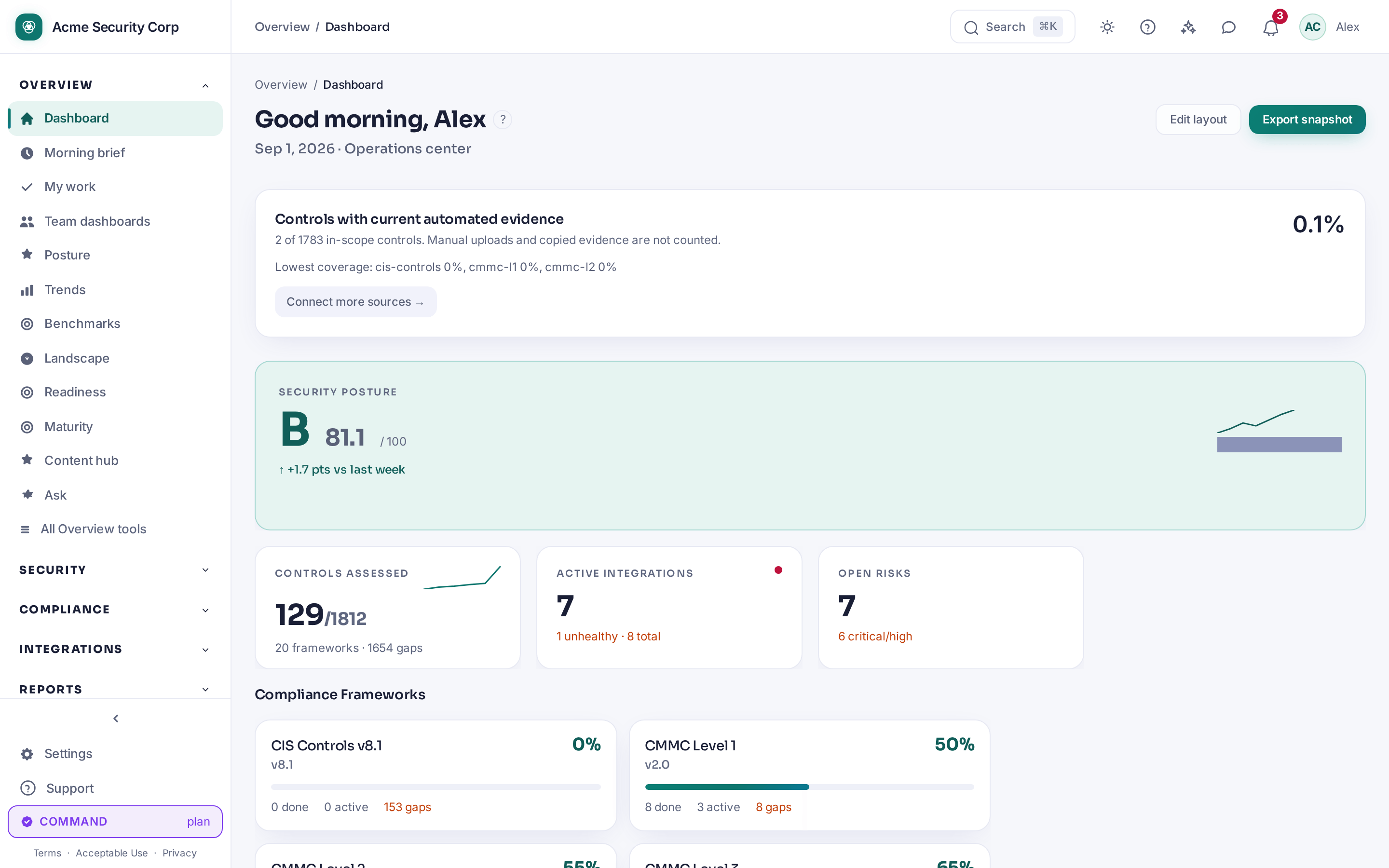
/dashboard) — your personal, rearrangeable home screen: posture score, control status, integration health, recent activity, and (if generated) the AI Risk Narrative, plus any KPI/KRI tiles you've added. - Team Dashboards (
/team-dashboards) — a way for an Owner or Admin to share a curated dashboard layout with the rest of the organization, so everyone sees the same board without building their own. - Metrics Library (
/metrics-library) — the KPI/KRI catalog: dozens of pre-seeded metrics (MFA coverage, control coverage, phishing reporting rate, and more) plus the ability to define your own, tenant-private metric. - My Work (
/my-work) — a single queue of everything assigned to you personally — across remediation tasks, POA&M items, initiatives, control assessments, vendor questionnaires, exercises, and risks — bucketed into Overdue, Due soon, and Open. - Notifications — the bell icon in the top bar, and the full history at
/notifications.
When to use it
- Starting your day: open the Dashboard for the current posture picture, then My Work to see what's actually due from you today.
- Standardizing what a manager or the whole team looks at, instead of everyone building their own dashboard from scratch — that's what Team Dashboards is for.
- Tracking a metric CMDash doesn't compute for you automatically (a manually-reported number from another system) alongside the metrics it does compute — that's the Metrics Library.
- Catching up on what happened while you were away — an evidence request, an approval waiting on you, an overdue task — via Notifications.
Before you start
| Page | Tier | Role to view | Role to change |
|---|---|---|---|
| Dashboard | Any tier | Any member | Editing your own layout: any member — it's per-user. Export Snapshot: Owner or Admin |
| Team Dashboards | Any tier | Any member (to apply a shared dashboard) | Share/edit/delete a team dashboard: Owner or Admin |
| Metrics Library | Command or higher | Any role | Create/edit a custom KPI/KRI, or record a manual reading: Owner or Admin |
| My Work | Any tier | Any member (your own queue only) | — |
| Notifications | Any tier | Any member (your own notifications) | — |
How to
Rearrange your dashboard and export a snapshot
- Open Dashboard from the Overview section of the sidebar.
- Click Edit layout in the top-right corner. The button label changes to Done editing while you're in edit mode.
- Drag a widget by its
⠿handle to reorder it, or drag its bottom-right corner to resize it. Use the on-widget ↑ ↓ ⤢ × controls to move, resize, or remove a single widget without dragging. - Click + Add widget to open the catalog — every built-in widget (Security Posture Score, Controls Assessed, Active Integrations, Open Risks, CCM Failing-Now, Team, Compliance Frameworks, Recent Activity, Integration Health, AI Risk Narrative) plus one tile per active KPI/KRI from the Metrics Library.
- Click Done editing to save. Your layout is personal — it doesn't change what anyone else sees.
- Click Export Snapshot (top-right, next to Edit layout) to generate a downloadable PDF/CSV of your current board. A "Board snapshot ready" banner appears with the download link once it's generated.
Share a dashboard with your team
- Open Team Dashboards from the Overview section.
- If you're an Owner or Admin, click Share my dashboard. This shares your current personal dashboard layout — build it the way you want it first, on the regular Dashboard page.
- Give it a name in the dialog and confirm. Anyone in your organization can now find it on this page and apply it to their own view.
- To change or retire a shared dashboard later, use the edit and delete controls next to it (Owner/Admin only) — a member who isn't an admin sees the list without those controls.
Track a custom KPI or KRI
- Open Metrics Library from Security → All Security tools.
- Browse the seeded catalog — each entry shows its category, direction (higher/lower is better), and its most recent reading, with a badge distinguishing an auto-populated (measured) reading from a manually-entered one.
- To add your own, click New KPI / KRI, fill in the definition (name, category, direction, and — if you want CMDash to compute it automatically from a connected source — an auto-source type), and save. Custom definitions are private to your organization.
- To log a reading by hand for a manual metric, use the entry's own log-a-reading control on this page.
Check and clear your work queue
- Open My Work from the Overview section.
- Items are grouped as Overdue, Due soon, and Open, across every one of the seven assignable-work systems CMDash tracks.
- Click any item to jump straight to its record in the system it belongs to (remediation, POA&M, an initiative, a control assessment, a vendor questionnaire, an exercise, or a risk).
- When every item assigned to you is closed, the page tells you so plainly rather than showing an empty, ambiguous list.
Review notifications
- Click the bell icon in the top bar to see your 20 most recent notifications without leaving the page you're on.
- Click View all notifications → at the bottom of that dropdown to open the full
/notificationspage, which adds read/unread and type filters plus pagination that the dropdown doesn't have. - On the full page, use the All / Unread toggle and the type filter to narrow the list.
System Health
Admin → System Health (/health-dashboard, every tier and role) runs deep dependency
checks — database, cache, object storage, queue and scheduler — and auto-refreshes every 30
seconds. It is the page to open when a sync is late or a widget will not load: an "Overall"
status at the top, then one row per dependency. It reads live state and is not part of the
demo seed, so what you see is your deployment's actual health, never sample data.
Common questions
Does Edit layout affect what my teammates see? No. Your personal Dashboard layout is yours alone. Only a Team Dashboard, explicitly shared by an Owner or Admin, is a layout other people can see.
Why can't I find a "Notifications" item in the sidebar? There isn't one by design — notifications are reached through the bell icon in the top bar, which is the only link into the full /notifications page.
What's the difference between a KPI widget on my Dashboard and the Metrics Library itself? The Metrics Library is the full catalog and history for every KPI/KRI, including ones you define yourself. A KPI widget on your Dashboard is a single tile pulled from that same catalog — add one via + Add widget in edit mode.
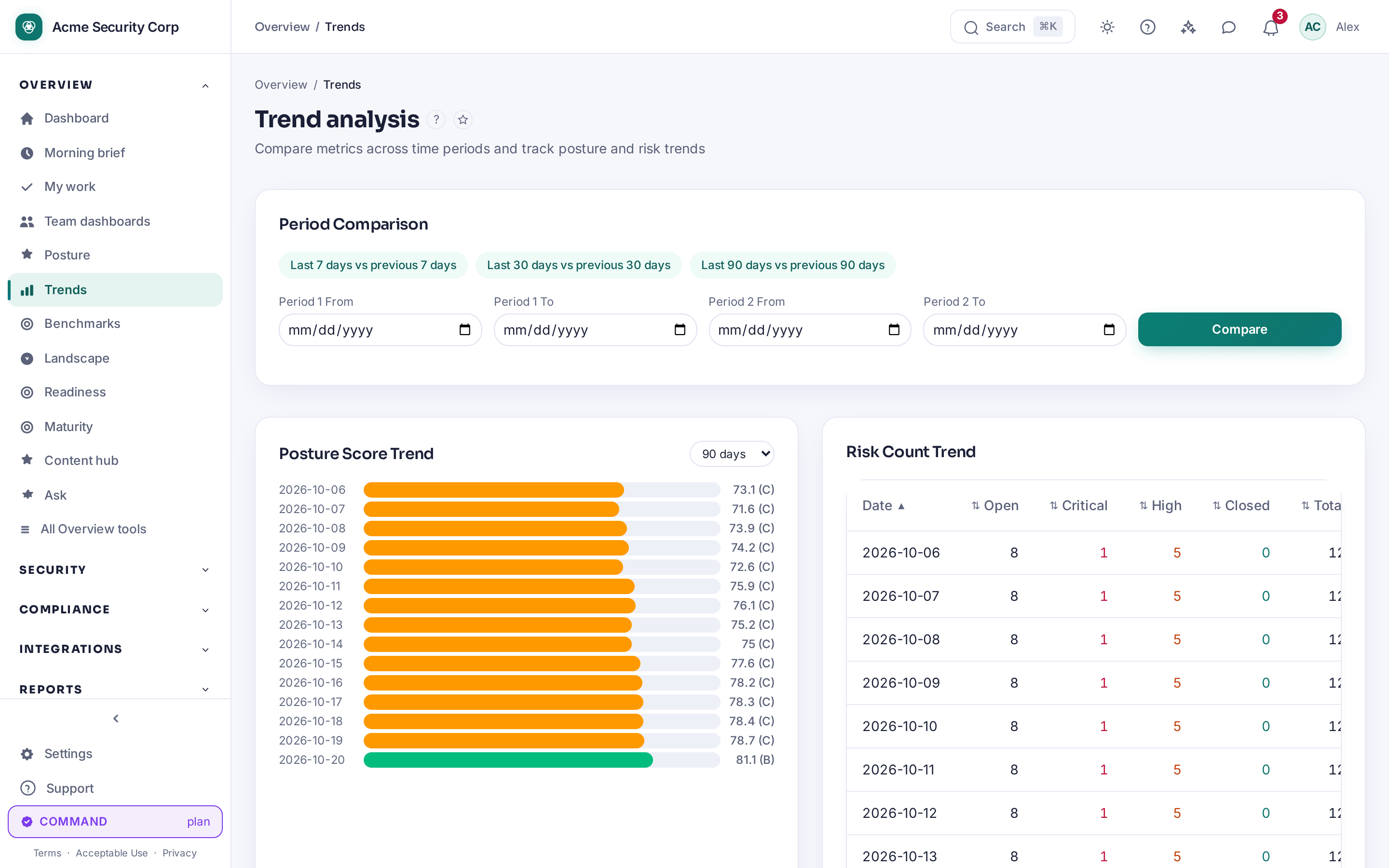
Can I see historical trends, not just the current value? Yes — Trends (/trends, Overview section, page title "Trend Analysis") compares metrics across time periods and charts posture and risk history, separately from the Metrics Library's per-metric readings.
Related
- Posture Score — the score and signals most Dashboard widgets summarize
- Board Reporting — for a formal, presentation-ready export rather than a quick snapshot
- AI Governance — the AI Risk Narrative widget shown on the Dashboard