Risk Register [Command+]
The Risk Register is a centralized repository for tracking security and compliance risks. It provides a structured methodology for documenting, scoring, and managing risks through their full lifecycle, and it serves as the primary input for remediation planning and board reporting.
Adding a Risk
Click Add Risk from the Risk Register view. The risk creation form includes:
- Title — a concise, descriptive name for the risk (e.g., "Unpatched critical CVEs in production web servers")
- Description — a full description of the risk, including context, source, and potential consequences
- Likelihood (1–5) — the probability of the risk materializing: 1 (Very Low) to 5 (Very High)
- Impact (1–5) — the severity of consequences if the risk materializes: 1 (Very Low) to 5 (Very High)
- Owner — the person responsible for managing and remediating the risk; must be a workspace member
- Status — initial status (typically Open)
- Tags — one or more custom tags for filtering and categorization
- Mitigation Plan — a description of the planned or in-progress remediation approach
- Linked Controls — compliance controls this risk maps to
Click Save to create the risk. The risk score is calculated automatically.
Risk Score Calculation
The risk score is derived from the likelihood and impact values:
Raw Score = Likelihood × Impact
This yields a raw score from 1 (1×1) to 25 (5×5). The raw score is normalized to a 0–100 scale for consistency with the Posture Score and reporting:
Normalized Score = ((Raw Score − 1) ÷ 24) × 100
Common score reference points:
| Likelihood | Impact | Raw | Normalized |
|---|---|---|---|
| 1 | 1 | 1 | 0 |
| 3 | 3 | 9 | 33 |
| 4 | 4 | 16 | 63 |
| 5 | 5 | 25 | 100 |
The normalized score drives ranking in the risk register and determines which risks appear in the Dashboard's Top 3 Risks panel.
Risk Statuses
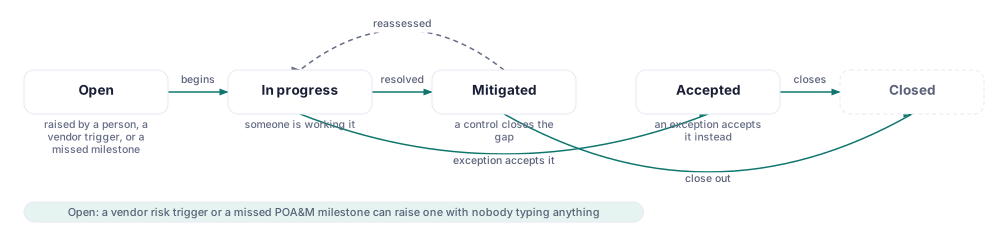
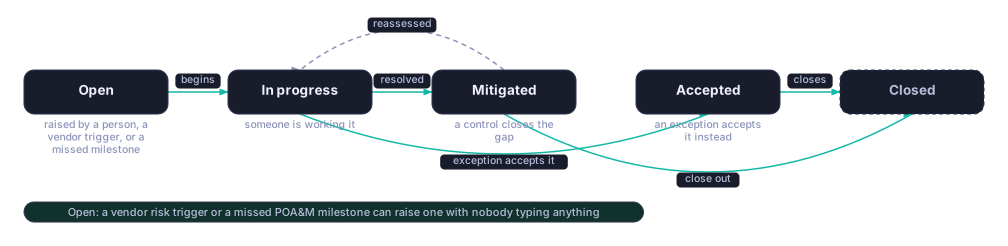
| Status | Description |
|---|---|
| Open | Risk identified but not yet actively being addressed |
| In Progress | Someone is working it; usually linked to one or more remediation tasks |
| Mitigated | A control now closes the gap; the risk can be reassessed back to In Progress if that changes |
| Accepted | Organization has formally accepted the risk; requires a written rationale from an Owner or Admin |
| Closed | Risk has been fully remediated or is no longer applicable |
When setting a risk to Accepted, a rationale field is required. The acceptance, including the rationale and the approving user, is recorded in the audit log. Accepted risks remain visible in the register but are excluded from posture score calculations by default (configurable in Settings).
When setting a risk to Closed, CMDash prompts you to confirm that associated remediation tasks are also complete.
Filtering and Sorting the Register
The Risk Register supports the following filter controls:
- Status — filter by one or more status values
- Owner — filter by assigned owner
- Score range — slider to set minimum and maximum normalized score
- Tags — filter by one or more tags
- Linked framework — show only risks linked to controls in a specific framework
- Date added — filter by when the risk was created
Sort the register by score (default, descending), title, owner, status, or date added. Combining filters with sorts allows you to quickly surface, for example, all high-score open risks owned by a specific team member.
Saved Views (see Search, Tags & Saved Views) allow you to save any filter and sort configuration for reuse.
Bulk Import via CSV
To import multiple risks at once, click Import in the Risk Register and download the CSV template. The template includes columns for all required and optional risk fields. Populate it and upload; CMDash validates each row and shows a preview before committing. Rows with validation errors (e.g., likelihood value outside 1–5) are flagged for correction. Rows that pass validation are imported immediately.
Linking Risks to Compliance Controls
Open a risk's detail panel and click Link Controls. Select the framework, then select one or more controls. Once linked, the risk appears in the control's Linked Risks list in the Compliance view, and the control appears under the risk's Linked Controls list. This bidirectional relationship is important for generating POA&M exports and for audit evidence packages.
FAIR Quantification [Enterprise]
Enterprise workspaces can enable FAIR (Factor Analysis of Information Risk) quantification on individual risks. FAIR converts the qualitative likelihood × impact score into a financial range estimate (minimum, most likely, maximum annual loss exposure) using the FAIR methodology.
To quantify a risk using FAIR:
- Open the risk detail panel and click Quantify with FAIR.
- Complete the FAIR input form: threat event frequency, vulnerability, primary loss magnitude factors, and secondary risk factors.
- CMDash runs a Monte Carlo simulation and returns an Annualized Loss Exposure (ALE) range.
The ALE range appears on the risk detail card and can be included in board reports. See the FAIR Quantification feature guide for a full walkthrough of the methodology and inputs.
Exporting the Risk Register
Click Export in the Risk Register toolbar to export the current filtered view. Available formats are CSV and JSON. The export includes all visible columns plus internal IDs for integration with external GRC tools or ITSM systems.