Policies & Attestations
What it is
The Policy Library (/policies, sidebar: Compliance → Policies) is CMDash's authoritative,
versioned record of your security and compliance policies. Every published version is immutable;
editing a draft never touches a version that has already gone live. Four related surfaces work
together with it:
-
Attestations (
/attestations, Compliance → Attestations) — where an individual employee reads a policy and records "I have read and agree to this," optionally after passing a comprehension quiz. -
Approvals (
/approvals, Compliance → Approvals) — a personal queue of policy versions awaiting your sign-off before they can publish. -
Statement Library (
/statements, Security → All Security tools → Statement Library) — reusable, versioned per-control implementation narratives for a System Security Plan (SSP), separate from policies. -
Policy Portal (configured from Settings → Policy Portal) — a public, unauthenticated web page listing whichever individual policies you have chosen to make public. It is not part of the main CMDash app and requires no login to view. It is on by default for every organization, at
https://<your-organization-address>.<your-cmdash-domain>/public-policies— the exact address is shown to you on Settings → Policy Portal.On by default does not mean your policies are published. The portal shows a policy only when someone with the Owner or Admin role has marked that individual policy public, and only its current published version. An organization that has marked nothing public has a portal page that says so and lists nothing.
Limits: the Policy Portal is a read-only public listing, not an employee
attestation tool. There is no login, quiz, or "I agree" action on it anywhere. Employee
attestation happens inside the main app at /attestations, described below — do not confuse the
two.
When to use it
Use the Policy Library whenever you need a written policy an auditor or a customer's security questionnaire will ask for. Use Attestations to prove your workforce has actually read and acknowledged those policies — SOC 2 and ISO 27001 assessors both look for this. Use Approvals when your organization requires a second person to sign off before a new policy version goes live. Use the Statement Library when you are writing an SSP and want one narrative per control that several frameworks can reuse instead of retyping it. Use the Policy Portal when you want to publish specific, finished policies to prospects or customers without giving them a CMDash login — for example, to answer "can we see your data-retention policy" during a sales cycle. It is already available; you only choose which policies appear on it.
Before you start
Policies, Attestations, and Approvals are ungated on every plan, like Exceptions, because every organization needs them regardless of tier. Statement Library requires the Command plan or higher.
Draft with AI is Starter and above, and each draft uses one of your plan's monthly AI runs (see Billing). On the Free plan, templates and manual authoring are available and AI drafting is not: the Draft with AI button is not shown, and AI drafting is refused if requested another way. Suggested control links work on every plan: without AI, or once the month's AI runs are used up, they are ranked by keyword match (no AI run, no prepaid credit); the AI ranking uses one run.
Roles: creating, publishing, or retiring a policy, and starting an attestation campaign, requires
Owner or Admin (isPrivileged = role === 'OWNER' || role === 'ADMIN' in the policy detail
page). Recording your own attestation and viewing your own pending approvals is open to any
authenticated user — that is the point of both queues. Deciding someone else's policy-approval
request is limited to whichever users were named as approvers for that policy. Turning the
Policy Portal off, and choosing its optional custom address, is Owner or Admin only; making
an individual published policy public or private is also Owner/Admin, from a toggle on that
policy's own page.
How to
-
Create a policy. On Policies, click + New Policy for a blank draft, or use one of the two other creation paths on the same page: Create from template (a starter policy with your org name and today's date filled in) or Draft with AI ("Claude drafts a full policy from a topic + context. You review, tweak, and create — nothing is saved until you click Create."). All three create a
DRAFTat version 1; nothing is live until you publish.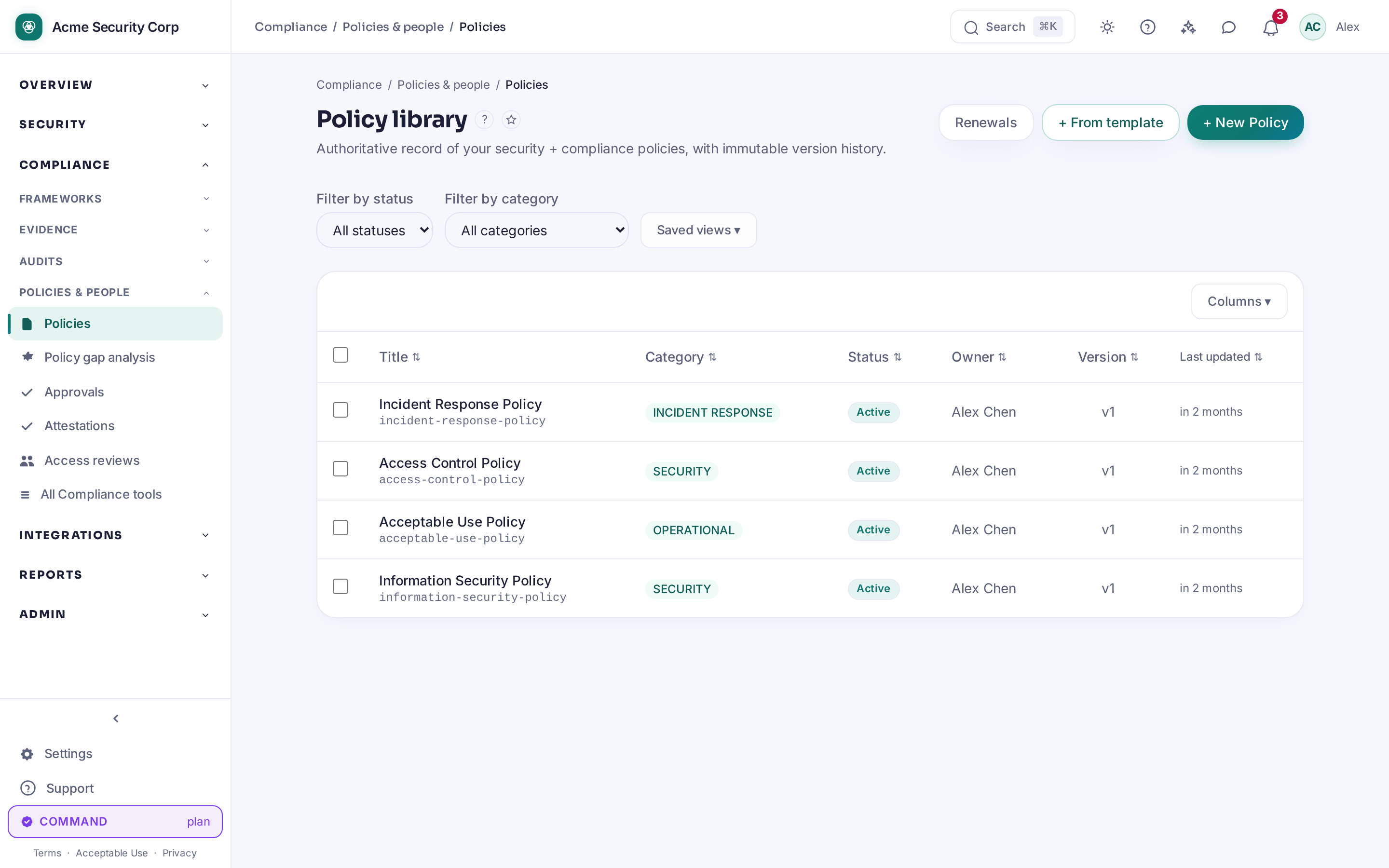
-
Edit and publish. Open a policy and click Edit + Publish. Publishing turns the current draft into an immutable, dated version.
-
Send it for approval, if configured. If your organization requires approvers, a published version can sit in the approver's My approvals queue (Compliance → Approvals) until they Approve or Reject it; rejecting rolls the policy back to
DRAFT. Approving counts toward the quorum your organization configured. -
Start an attestation campaign. From a published policy's page, click Start attestation campaign. This assigns the policy to the audience you choose and creates one pending attestation per person.
-
Attest as an employee. On My Attestations (
/attestations), open a pending item. The dialog reads "Attest: {policy title}" and shows the policy content to read. If the policy has a comprehension quiz attached, you must "read the policy, pass the comprehension check, then submit your attestation" before the checkbox will let you continue; otherwise you check the box and submit directly. Completed attestations move to the "Completed" list, which the page describes as "a permanent audit record." -
Retire a policy. From the policy's page, an Owner/Admin can click Retire to confirm retirement — this is a policy-lifecycle action, distinct from making a policy private.
-
Publish a policy to the public Policy Portal. The portal is already on — there is nothing to enable. Open the policy you want to publish and click Make public on its "Public policy portal" card; the card warns "Anyone with the link can read this policy's current published content — no login required." Click Make private to pull it back. Your portal's address is shown on Settings → Policy Portal, which also offers two optional controls:
- Enable the policy portal — checked by default. Unchecking it and saving makes every portal address for your organization return "not found" immediately, for everyone. It does not change any individual policy's public or private setting, so re-enabling brings back exactly what was published before.
- Custom address — an optional second, shorter address on the shared policy host (lowercase letters, digits, and hyphens). Leaving it blank is normal; clearing it retires that one address and does not turn the portal off.
-
Reuse a control narrative. On Statement Library (Command+), click New control statement, optionally starting from a global or custom template for the framework/control you pick, fill in the Statement body (any
[[NEEDS INPUT: ...]]marker is an unresolved placeholder), and have an Owner/Admin approve it before it's used in an SSP.
Policy Gap Analysis
Compliance → All Compliance tools → Policy Gap Analysis (/policy-gap-analysis, every tier; Owner or Admin to
run) lets you upload the policies you already have, map them against one framework's controls,
and see exactly what is missing: every control comes back Covered or Gap. From a gap you
can accept a rewrite suggestion, which always creates a brand-new DRAFT policy grounded in
the shipped policy template library — it never edits a policy you already have. Use it before an
audit, or when adopting a new framework, to turn "we probably have a policy for that" into a
list.
Common questions
Do I need to buy anything to attest to a policy or approve one? No. Attestations and Approvals are open to any authenticated user on any plan — only the Statement Library needs Command or higher.
Can I make my whole policy library public? No — visibility is set one policy at a time, public or private. There is no "publish all" action.
The portal is on by default — is everything public now? No. The portal being on only means the page exists and is reachable. Nothing appears on it until someone marks an individual policy public, and a policy that has never been published shows nothing even then. A brand-new organization's portal is an empty page.
What is my portal's address? Open Settings → Policy Portal. The default address is derived from your organization's own address and is always available while the portal is on. If you also set a custom address, both work.
Does an employee need a CMDash account to attest? Yes — attestation happens inside the main
app at /attestations, which requires login. The public policy portal is the opposite case: it
requires no account, but it never asks anyone to attest to anything, only to read.
Does editing a published policy change its history? No. "Editing metadata does NOT create a new version — only publishing new content does," per the policy metadata form's own note.
Related
- In-app: Compliance → Policies (
/policies), Compliance → Attestations (/attestations), Compliance → Approvals (/approvals), Security → All Security tools → Statement Library (/statements), Settings → Policy Portal (/settings/policy-portal) - Security Programme — the charter and objectives a policy library supports
- Evidence Collection — evidence gathered alongside policy attestations