Incidents & Exercises
What it is
Incidents tracks real security incidents, their action items, and postmortems. An open incident degrades the confidence score on any control it's linked to — visible on the Maturity workspace — until real remediation work closes it out. Tabletop Exercises (nav label "Tabletop Exercises," page title "Incident Readiness Workspace") is the rehearsal half of the same loop: run a scripted scenario against a library of templates, schedule it, collect participant sign-off, and track findings as action items using the same remediation machinery Incidents uses. Remediations is where every action item from both surfaces — and from everywhere else in the app — lives, and it's also home to two more targeted mechanisms, each a tab on the Remediations page rather than its own sidebar row: Playbooks, templated multi-step remediation with approval gates and per-step evidence, and Estate write-back, a real push into a connected MDM or EDR tool. Workload rolls up who on the team is carrying how much open work, across every assignable-work system at once.
When to use it
Open an incident the moment something real happens — a detected intrusion, a ransomware alert, a confirmed data exposure — so the confidence penalty and the action-item tracking start immediately. Schedule a tabletop exercise on a cadence, or ad hoc, to rehearse a response before a real incident forces you to improvise one. Use a Playbook when a remediation is a procedure an auditor can sample — ordered steps, approvals, evidence per step — not just a checklist item. Use Estate write-back when a remediation is "reconfigure this device or exclusion in our MDM/EDR tool," and you want CMDash to make that change directly instead of leaving it as an instruction for someone to do by hand. Check Workload before you assign more work to someone who's already overloaded.
Before you start
| Page | Nav location | Tier | Role notes |
|---|---|---|---|
Incidents (/incidents) | Security | No tier gate | Reading incidents is open to any member; opening, updating, deleting an incident, its action items and its postmortem are OWNER/ADMIN. |
Tabletop Exercises (/exercises) | Security | No tier gate | Reading exercises is open to any member; scheduling, editing, the roster and action items are OWNER/ADMIN. A sign-off can be recorded by a participant of that exercise, or by an Owner or Admin. |
Remediations (/remediations) | Security | No tier gate | Reading tasks is open to any member; creating, updating, and adapter/IdP push actions are OWNER/ADMIN. |
Playbooks (/remediations/playbooks) | Security | Command and above | Browsing the starter catalogue is open to any member; adding a playbook, editing one, and acting on a run are OWNER/ADMIN. |
Estate write-back (/remediations/estate-write-back) | Security | Command for the preview; Enterprise for the real write | Both actions are OWNER/ADMIN. The split is two separate plan features: the preview (Command and above, read-only, creates nothing) and the real write (Enterprise). |
Workload (/workload) | Security | Command and above | Every read (summary, per-person, your own queue) is open to any member. The page itself is read-only by design — there's no reassign control on it; reassigning an item is done from whichever module owns it. |
How to
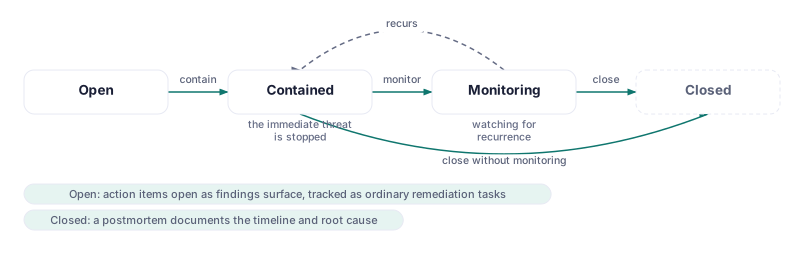
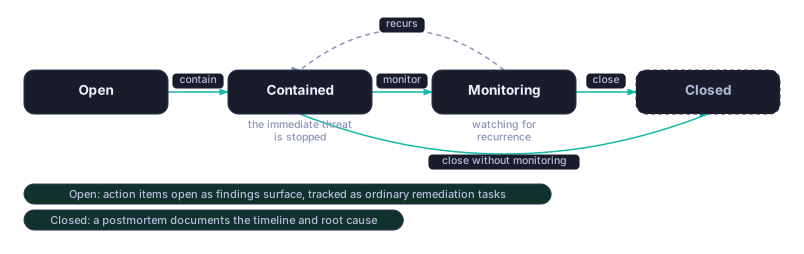
Open and track an incident
- Go to Security → All Security tools → Incidents and click + Open Incident.
- Give it a title, an optional description, and a severity (Critical/High/Medium/Low). The dialog states directly what severity drives: an opening confidence penalty on any linked control (50% for Critical, down to 15% for Low) — that penalty only recovers as real remediation work on the incident's action items closes it out.
- Filter the register by status (Open/Contained/Monitoring/Closed) or severity as it grows.
Run a tabletop exercise
- Go to Security → All Security tools → Tabletop Exercises. Under Scenario Library, pick a template and click Schedule This Exercise, or click + Schedule Custom Exercise to build one from scratch.
- Each exercise tracks its schedule, participants, sign-offs, and action items in one table. Findings from a completed exercise become action items using the same remediation-task workflow Incidents and Remediations already use — there's no separate "exercise findings" system to learn.
Build a remediation playbook
- Go to Security → Remediations, then open the Playbooks tab. Add one from the Starter catalogue with Add to my playbooks, or start from scratch with + New custom playbook.
- A playbook is an ordered list of steps, each one of three kinds: Manual (a person does something and checks it off), Action (triggers an automated remediation action), or Approval Gate (a step that blocks progress until an OWNER/ADMIN signs off). Any step can require evidence before it's marked done — the page's own description calls this "a procedure an auditor can sample, not just a task list."
- Once a playbook is instantiated against a remediation task, its run tracks each step's status (Pending/In Progress/Done/Skipped) along with who completed it, any linked evidence, and, for Action steps, the underlying remediation action's own status.
Push a real change into your MDM/EDR estate
- Go to Security → Remediations, then open the Estate write-back tab. The page explains the model up front: "Push a change into your MDM or EDR estate, with a dry run first, an explicit approval, and a follow-up read that proves it took effect. Previewing is available on Command; applying requires Enterprise."
- Paste in the Remediation task id this change belongs to (there's no picker or inbound link from the Remediations list today — copy the id from the task you're working), pick an action type, and fill in the target. Click Dry run — show me exactly what this would do. This calls Preview, which is read-only at every tier: it renders the exact vendor call CMDash would make, shows the current state it would change, and lists the permission scopes required — creating no action row.
- If your organization is on Command only, the preview says plainly: "Your plan can preview this but not apply it. Applying a change to your estate requires Enterprise." On Enterprise, submitting the request creates a pending action for an OWNER/ADMIN to Approve and apply or Reject.
- On approval, CMDash performs the real vendor call — a Jamf policy push, an Intune policy push, or a CrowdStrike exclusion change, depending on the adapter — then reads the target back to confirm the change actually took effect. If the vendor accepted the write but the confirmation read disagrees, CMDash records it as failed rather than a silent success; if the vendor can't be read back at all, it's flagged as unverifiable rather than assumed failed.
- For CrowdStrike exclusions specifically, use the read-only EDR exclusion review panel (Machine Learning / Indicator of Attack / Sensor Visibility) to see what CrowdStrike currently reports before deciding what to push.
Check who's carrying too much
- Go to Security → All Security tools → Workload to see open assigned work rolled up per person across every assignable-work system (risks, remediations, incidents, exercises, and more).
- Workload is read-only by design — there is no reassign control on this page itself. To change who owns an item, click through to the module that owns it (Risks, Remediations, Incidents, and so on) and reassign it there.
Common questions
Does an open incident actually change my compliance scores? Yes — an open incident applies a confidence penalty (by severity) to any control it's linked to, visible on the Maturity workspace. The penalty is not time-based; it only comes down as the incident's own action items are genuinely closed.
What's the difference between a Playbook step and a plain remediation task? A plain task is one thing to do. A Playbook is a reusable, versioned, multi-step procedure — with manual steps, automated action steps, and approval gates in a fixed order — meant to be instantiated repeatedly and sampled by an auditor as a defined process, not a one-off.
Is Estate write-back a real remote action, or just a list of suggested changes? It's real. On Enterprise, an approved request performs an actual vendor API call (Jamf/Intune/CrowdStrike) and then reads the target back to verify the change took — this is not a proposal list; it changes the device or exclusion state in your connected tool.
Limits: there is no bulk "approve all pending estate write-back actions" control — each one is approved individually, by design, since it performs a real external write.