vCISO — Multi-Client Dashboard [Command+]
The vCISO Multi-Client Dashboard gives virtual CISOs, fractional security leaders, and MSSPs a single consolidated view across every client workspace they manage. Instead of logging in and out of separate accounts, you see all your clients in one place — with color-coded posture grades and risk counts — and open any client's full workspace in a single click. The vCISO dashboard requires a Command or Enterprise subscription on your personal CMDash account.
Who It Is For
The vCISO dashboard is designed for:
- Fractional CISOs managing 2 to 20 client organizations on a retainer or project basis
- MSSPs (Managed Security Service Providers) offering security oversight or GRC advisory services to multiple clients
- Security consultants who stand up and administer a CMDash workspace on a client's behalf as part of a formal engagement
If you manage a single organization with multiple internal business units, this feature is not the right fit — it is designed for separate legal entities with independent CMDash tenants.
Accessing the vCISO Dashboard
Navigate directly to /vciso from within your CMDash account. This page is available to any user on a Command or Enterprise subscription.
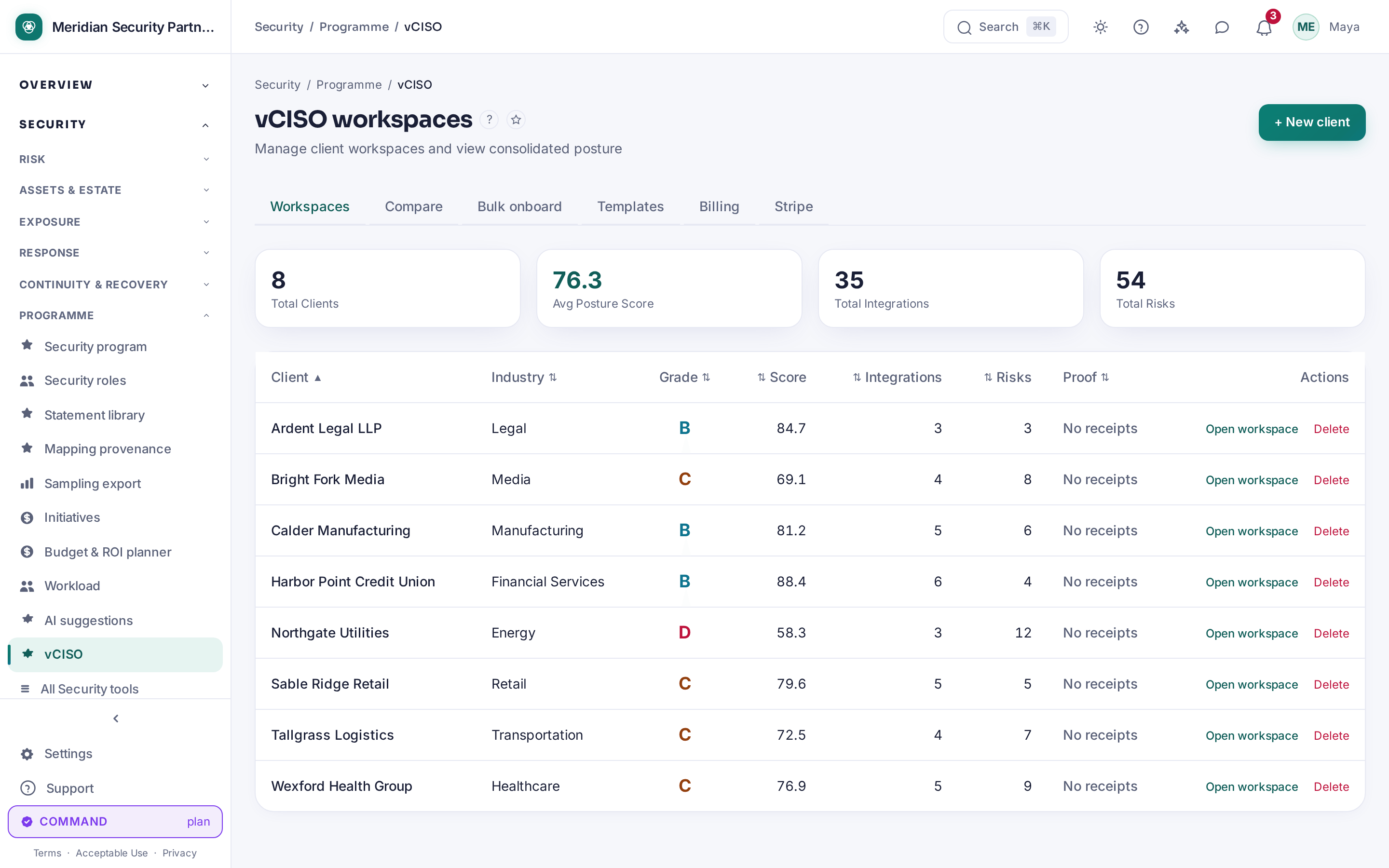
The vCISO dashboard displays:
- A list of your client workspaces (newest first), with a + New Client button to add another
- A summary bar showing your total client count, average posture score, total integrations, and total open risks across the whole portfolio
- Each client's current Posture Grade (A–F), color-coded, and numeric Posture Score
- Each client's integration count and total risk count
If you have not yet created any client workspaces, the page shows "No client workspaces yet. Create one to get started."
Setting Up Multi-Client Access
Unlike an ordinary CMDash organization, a vCISO client workspace is a child workspace you create and own — the client does not sign up separately or invite you in.
Creating a Client Workspace
- Navigate to
/vcisoin your own CMDash account. - Click + New Client.
- Enter the Client Name (required) and optionally select an Industry.
- Click Create Workspace.
The new client workspace appears immediately in your workspace list. It counts against your tier's included managed-workspace allotment (see Billing below).
Note: Only an OWNER or ADMIN of your own organization can create or enter client workspaces. Only an OWNER can delete one.
Deleting a Client Workspace
Deleting a client workspace permanently erases it. Click Delete on its row, then type the workspace's slug to confirm. CMDash then:
- Records the deletion in your own organization's audit log before anything changes.
- Closes the workspace, so nobody can sign in to it.
- Erases every record and uploaded file the workspace holds, and destroys its encryption keys.
- Issues a deletion certificate for the workspace.
When it finishes, the page shows the certificate's id and a Download certificate button. Billing records are kept, along with the certificate itself. A deletion cannot be cancelled once confirmed. If erasing the data fails part-way, the workspace stays closed and CMDash retries automatically. M&A target workspaces are deleted the same way, from the M&A due diligence page.
The Roll-Up View
The main vCISO dashboard (/vciso) lists your client workspaces in a table, ordered by creation date (newest first) — there is no column-sort or filter control on this table.
Columns
| Column | Description |
|---|---|
| Client | The client workspace's name |
| Industry | The industry selected when the workspace was created (or — if none) |
| Grade | Current A–F letter grade from the workspace's latest posture snapshot, color-coded (A = green, B = blue, C = yellow, D/F = red) |
| Score | Numeric posture score from the latest snapshot |
| Integrations | Total connected integrations in that workspace |
| Risks | Total risk register entries in that workspace (not filtered by severity or status) |
| Proof | Whether the client's current proof receipts are fresh: Fresh, Stale, No receipts or Unavailable (sortable). Claim ids and freshness only; see MSP per-client proof |
| Actions | Open workspace and Delete |
The Compare Tab
The Compare tab on /vciso puts every client workspace side by side. It has three parts.
Framework comparison. Choose a framework and CMDash shows one row per client with how many of its controls are Assessed (out of the framework's total) and the count in each status: Implemented, In progress, At risk, Failing, Not started and Not applicable. Controls without an assessment count as Not started; only Implemented, In progress and Not applicable controls count as assessed; a control whose evidence has gone stale counts as At risk. A client that has scoped the framework out shows Out of scope, and a client whose figures could not be read shows Unavailable rather than a row of zeros.
Drill to a control. Pick a control from the same framework to see that one control's status in every client, with the date it was last evaluated and an "(evidence stale)" note where the status was downgraded for stale evidence.
Overdue remediation. Every client with open remediation tasks past their due date, with the count and the tasks themselves (priority and due date). It counts open tasks of every kind (risk, incident, access review and others), including tasks awaiting verification, so a client's figure can exceed its risk-only summary.
Each part lists at most the first 200 clients and says when it is showing fewer than all of them.
The Partner Data API
A practice can read the client workspaces it owns from its own tooling (a PSA, a billing system, a client-reporting pipeline) with a PARTNER API key. The API is read-only and covers the client list, each client's latest posture snapshot, control statuses, open remediation tasks and proof receipt metadata. It needs the vCISO practice console and Public API read access on the practice's plan. See the Partner API reference for keys, permissions, routes, rate limits and audit.
Switching Between Client Workspaces
To drill into a specific client's full workspace:
- From the roll-up view, click Open workspace on the client's row.
Once you enter a client workspace, all pages in CMDash (Dashboard, Risks, Compliance, Policies, Integrations) reflect that client's data, and a persistent banner reading "Viewing client workspace: <name> — all data shown..." appears at the top of every page.
To return to your own organization, click Return to my organization in that banner. This re-scopes your session back to your own workspace and returns you to /vciso. There is no separate top-left workspace-selector dropdown — the banner and its return button are the only way to switch back.
White-Label Branding [Command+]
With a Command or Enterprise subscription, you can replace CMDash's default branding with your own firm's branding in client-facing exports and reports.
Setting Up White-Label Branding
- Navigate to Settings → Branding in your CMDash account.
- Upload your firm's logo, or paste a logo URL (recommended size 200×50 px; uploads must be 2 MB or smaller).
- Optionally set a Primary Color (hex code), used in navigation, buttons, and board deck exports.
- Click Save Branding.
There is no separate organization-name field on this page — branding here is the logo and color only.
White-label settings apply to all exports and reports you generate from within any client workspace you enter. The client's own workspace interface still shows CMDash branding — white-labeling applies to exported documents only.
Per-Client Branding
Each client workspace can have its own branding configuration. If a client wants their own logo on their reports:
- Switch to the client's workspace context.
- Navigate to Settings → Branding (within the client workspace).
- Upload the client's logo and set their primary color.
When you generate a report from within a client workspace, CMDash uses that workspace's branding settings (not your own firm's branding). This is useful when the client wants self-branded reports for their internal board, while you use your firm-branded reports when presenting on their behalf.
Client Reporting
Generating reports for individual clients is done from within each client's workspace context, not from the vCISO roll-up view:
- Switch to the client's workspace context (open the workspace from the vCISO roll-up).
- Navigate to Reports → Report Builder (
/reports/builder). - Pick a starting template or choose sections yourself (Posture Score, Compliance, AI Risk Narrative, and others are all selectable sections, independent of format).
- Select the report format — PDF or PowerPoint (PPTX). Either format can include any of the sections you selected, including the AI Risk Narrative.
- Click Generate Report.
If white-label branding is configured (either at your firm level or the client workspace level), your or the client's logo appears in the report header. If no branding is set, the CMDash logo is used.
Reports are generated on demand from the Report Builder; there is no built-in recurring/scheduled report generation.
Billing
Client workspaces are billed to you, not to the client — they are child workspaces under your own subscription, not separate CMDash accounts. Your tier includes a set number of managed client workspaces at no extra charge; creating client workspaces beyond that allotment is billed as overage, priced per workspace with volume-based bands (a larger practice pays a lower per-workspace rate on the workspaces beyond its included count).
View your current usage, included allotment, and any overage charges on the /vciso page's Billing and Stripe tabs.
Because client workspaces are child workspaces of your own organization, they get the same feature set your own organization's tier unlocks — there is no separate client-side subscription tier to check before promising a feature.
Data Isolation
CMDash enforces strict data isolation between workspaces:
- Only an OWNER or ADMIN of your own organization can enter, or be entered into, one of your client workspaces.
- There is no mechanism by which data from one client workspace leaks into another.
- Entering and returning from a client workspace is written to that workspace's own audit log, so the client (or, on their behalf, you) can see exactly when the workspace was accessed.
When a client engagement ends, click Delete on that client's row in the vCISO roll-up view. This permanently removes the workspace and its data.
Best Practices
Create a standardized onboarding checklist for each new client. When you bring a new client into your vCISO practice, run them through the same setup process every time: connect integrations, enable compliance frameworks, import the risk register, set policy review cycles. A consistent onboarding process reduces setup time and ensures you are not missing coverage gaps. See the admin onboarding checklist for a recommended sequence.
Schedule a weekly roll-up review across all clients. Scan the Grade and Risks columns in the roll-up view to spot your riskiest clients first — the table isn't sortable, so with a larger portfolio it's worth scanning the whole list rather than relying on ordering. A weekly 30-minute review — noting which clients' grades declined and which have new risks — is enough to stay ahead of issues before they escalate.
Set up digest emails per client. CMDash can send a weekly digest and/or a daily brief. Configure these at the workspace level for each client: Settings → Notifications, toggling Weekly Digest and/or Daily Brief (within the client's workspace context). These go to all users in the workspace with notification permissions, so your client contacts receive them alongside you.
Document accepted risks and board approvals. When a client formally accepts a high-severity risk, document the rationale and the approving executive in CMDash's risk acceptance flow. This creates an auditable record that protects both you and the client if the risk is later scrutinized by an assessor or regulatory examiner.
Verify integration sync health weekly. Stale integrations silently degrade posture data quality. The roll-up view's Integrations column only shows a count, not sync freshness, so open each client workspace's own Integrations page during your review to check for a stale or failed sync — it may signal an expired API key, a changed credential, or a network connectivity issue that needs resolution.