Evidence Collection [Command+]
Evidence Collection is the mechanism by which CMDash gathers, stores, and presents proof of control implementation for compliance purposes. The feature is available on Command and above plans.
How Evidence Works
Evidence flows through CMDash via three paths:
-
Automated collection from integrations — when an integration syncs data, CMDash evaluates the data against control requirements and creates evidence records automatically. For example, a Duo sync confirming MFA enforcement across all user accounts generates evidence for multiple MFA-related controls.
-
Manual upload — for controls that cannot be evidenced through an integration (e.g., a signed board resolution, a vendor SOC 2 report, a screenshot of a configuration), you can upload files directly to the control's evidence panel.
-
Policy attestation records — completed policy attestations from the Policy Management module are automatically linked as evidence to relevant controls.
-
A quick note on a framework line — typing in the note box under any line in Compliance → [Framework] creates a dated, attributed evidence entry (kind Text) linked to that line, in the same step as an optional status change. This is the fastest path for evidence that is a fact, not a file.
Viewing Control-Linked Evidence
Every framework line shows an "N evidence" chip; click it to open a popover listing what is linked, or click the line's code to open its full record, where the Linked items section lists the same evidence alongside every control that also covers it. Opening an item from either place — or from its row in the Evidence Vault — takes you to its own evidence record, showing:
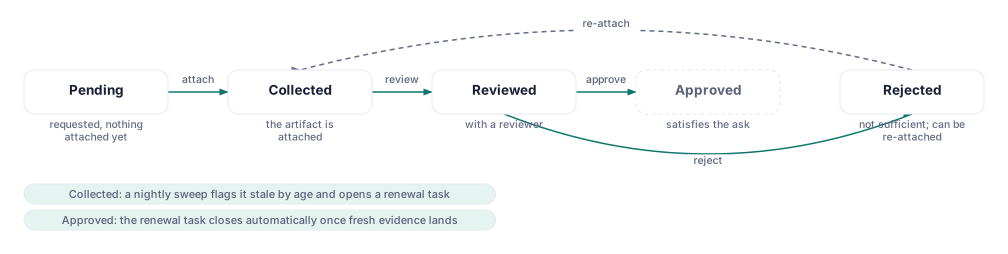
- Status — Pending, Collected, Reviewed, Approved or Rejected, changed directly on the record
- Kind — Text, Document, Recording, Link, or one of the automated kinds an integration writes
- Collected — when the evidence was gathered, and Collection method (Manual or automated)
- Source — the URL an integration or a Link artifact points at, when there is one
- Reviewed — when a reviewer last changed the status, once that has happened
- Reviewer notes — a free-text field a reviewer edits and saves explicitly (never on blur or autosave); it is one shared field, not a per-reviewer history, so a second reviewer's saved edit replaces the first
- Links — how many framework lines and how many of your own controls this evidence covers
- Attachments, and the full activity and comment history
For the staleness view across every artifact, see Compliance → Evidence → Freshness (the Evidence Collection feature guide covers it in depth).
Manual Evidence Upload
To upload evidence manually:
- From a framework line's "N evidence" chip, click + Add; or from the Evidence Vault, click Add evidence.
- Choose how it arrives: Upload a file (PDF, image, document, log file), Paste text (a written description — the same kind a quick note creates), or Link to it (an external document, policy portal, or tool).
- Add a title and, for a file or link, a description explaining what it demonstrates.
- Click Add evidence. Evidence added from a line's chip is linked to that line automatically; evidence added from the Evidence Vault is not linked to anything until you link it from its record or with Link to….
Manual evidence can be deleted or replaced at any time. Deletion is recorded in the audit log.
Evidence Packages [Enterprise]
Enterprise workspaces can generate a complete evidence package for delivery to auditors. An evidence package is a ZIP archive containing:
- All evidence files linked to controls in the selected framework
- A manifest file (JSON and PDF) listing every control, its status, each evidence item, its source, and its collection date
- A summary PDF showing framework completion statistics
To generate an evidence package:
- Navigate to Evidence and click Generate Package.
- Select the framework and, optionally, narrow the scope to specific domains or control statuses.
- Click Generate. CMDash compiles the package in the background; you will receive an in-app notification and email when it is ready.
- Download the ZIP from the Evidence Packages list.
Evidence packages are retained for 90 days after generation.
Audit Evidence Review Workflow
Before sending an evidence package to an external auditor, use the built-in review workflow:
- Generate the package as described above.
- Click Request Review. Assign one or more reviewers from your team who are Owners or Admins.
- Reviewers receive a notification and can open each control's evidence in a review interface, leaving comments and approving or flagging items. Viewers can read the evidence and the comments but cannot comment.
- Once all reviewers have approved, the package status changes to Ready for Auditor.
- Download and deliver the package. The delivery action is recorded in the audit log.